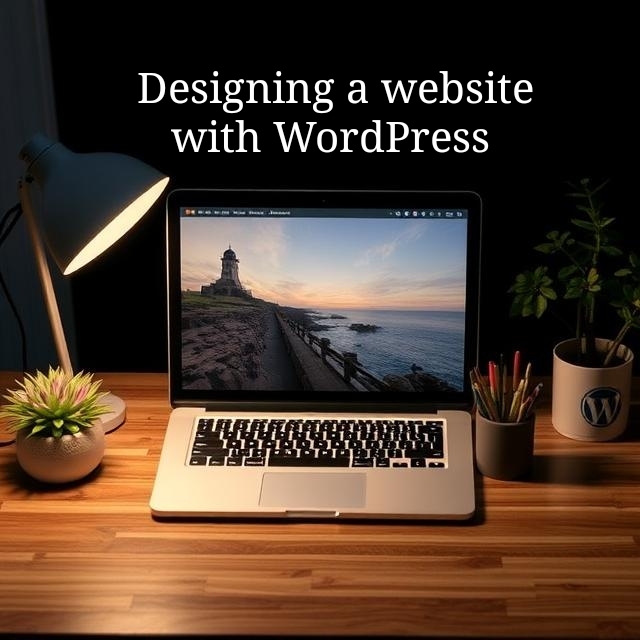
WordPress Made Simple: Your Step-by-Step Guide from Setup to Stunning Design
Learn how to install, customize, and master WordPress in minutes—even if you’re a complete beginner. Get pro tips on themes, plugins, and SEO to make your site stand out.
Introduction:
What if you could build a professional website without writing a single line of code? Sounds impossible? Not with WordPress. Over 40% of all websites run on this powerhouse platform—yet most beginners get stuck at the very first step. The truth? You don’t need to be a tech wizard to create a stunning site. Whether you’re launching a blog, an online store, or a business portfolio, this guide will take you from confused to confident in record time. Buckle up—your website journey starts now.
A Beginner’s Guide to WordPress: From Installation to Customization
1. Getting Started with WordPress:
WordPress is the easiest way to build a website. First, decide between WordPress.com (hosted) and WordPress.org (self-hosted). For full control, go with WordPress.org. You’ll need a domain name and hosting—popular choices include Bluehost, SiteGround, or Hostinger.
2. Installing WordPress:
Most hosting providers offer one-click WordPress installation. Log into your hosting account, find the WordPress installer, and follow the prompts. In minutes, your site will be live.
3. Navigating the Dashboard:
The WordPress dashboard is your command center. Key sections include:
– Posts: For blog entries.
– Pages: For static content like “About Us.”
– Appearance: Where you customize themes.
– Plugins: Add-ons for extra features.
4. Choosing a Theme:
Your theme controls your site’s look. Free themes like Astra or OceanWP are great starters. For premium designs, explore ThemeForest. Go to Appearance > Themes > Add New to install.
5. Essential Plugins:
Plugins add functionality. Must-haves include:
– Yoast SEO: Optimizes your site for search engines.
– Elementor: Drag-and-drop page builder.
– WooCommerce: For online stores.
6. Customizing Your Site:
Under Appearance > Customize, tweak colors, fonts, and layouts. Use the WordPress Block Editor (Gutenberg) to design pages visually.
7. Publishing Content:
Create posts or pages, add images, and hit Publish. Use categories and tags to organize content.
8. Maintaining Your Site:
Regularly update WordPress, themes, and plugins. Back up your site with plugins like UpdraftPlus.
Important Phrases Explained:
1. CMS (Content Management System): WordPress is a CMS, meaning it helps you create and manage digital content without coding. It’s user-friendly and flexible.
2. Responsive Design:
A design approach where your site adjusts to any screen size. WordPress themes are often responsive, crucial for mobile users.
3. SEO (Search Engine Optimization):
The practice of improving your site’s visibility on search engines. Plugins like Yoast SEO simplify this process.
4. Hosting:
The service that stores your website files. Shared hosting is affordable for beginners, while VPS offers more power.
5. Backend/Frontend:
The backend is your WordPress dashboard (where you edit), while the frontend is what visitors see.
Questions Also Asked by Other People Answered:
1. Is WordPress free?
Yes, WordPress.org is free, but you need hosting and a domain name. WordPress.com has free and paid plans with limitations.
2. Can I switch themes later?
Absolutely. Changing themes won’t delete your content, but some layouts may need adjustments.
3. Do I need coding skills?
No. WordPress is designed for non-coders, though basic HTML/CSS can help with advanced tweaks.
4. How do I get more visitors?
Use SEO, share on social media, and publish quality content consistently.
5. Is WordPress secure?
Yes, if you keep it updated, use strong passwords, and install security plugins like Wordfence.
Summary:
WordPress makes website building easy for everyone. Start by choosing hosting, installing WordPress, and picking a theme. Customize with plugins and publish content effortlessly. Keep your site updated and secure. With these steps, you’ll have a professional site in no time—no coding required.
#WordPress #WebDesign #BeginnerGuide #WebsiteBuilder #SEO #OnlineBusiness #Blogging #TechForBeginners #DigitalMarketing #WebDevelopment