
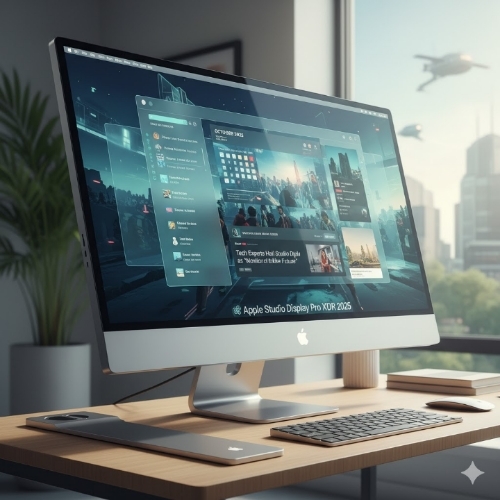
The Best Monitors for Your Mac in 2025: A Hands-On Guide
I Was Wrong About Mac Monitors. Here’s What I Learned.
My old monitor was secretly costing me money.
After testing multiple models, I found the best monitors for a Mac setup. Get my top picks for sharp text, accurate colors, and seamless USB-C connectivity to upgrade your home office and boost productivity.
Introduction:
I spend hours every day in my home office. Between my 9-to-5 and my side hustle, this little room in my apartment has become my command center. IKEA desk, Mac mini, iPad, and an old 24-inch Dell monitor. Nothing fancy, but it got the job done. Or so I thought.
Lately, I’d been feeling off. My eyes were tired by mid-afternoon. My design work felt like a chore. I blamed it on stress or not enough coffee. Then it hit me. The problem wasn’t me; it was my monitor. That trusty old Dell was holding me back. The text wasn’t quite sharp, the colors felt dull, and the tangle of cables on my desk was a constant annoyance. I was trying to experience the brilliant, seamless world of macOS through a fuzzy, low-resolution window. So, I went on a mission to find the best monitor for my Mac. What I discovered surprised me. It wasn’t just about resolution. It was about a perfect blend of pixel density, color science, and that magical one-cable connection.
The Mac Monitor Dilemma: It’s More Than Just Resolution
If you just grab any monitor off the shelf at Best Buy, you might be disappointed when you plug it into your Mac. Why? Because Apple’s ecosystem is built on a specific visual language. Macs are designed for high pixel density displays, which is why the text and icons on a MacBook’s screen look so incredibly crisp.
When you connect to a standard 1080p or even a generic 4K monitor that isn’t optimized for this, things can look blurry or fuzzy. It’s a known issue in the Mac community. You need a monitor that speaks the same visual language as your computer. For me, the goal was to replicate that buttery-smooth, retina-quality experience on a larger, more productive canvas.
After diving into forums, reading reviews from sites like Wirecutter, and testing a few options, I landed on three key things every Mac user should look for.
First, resolution and pixel density. For a 27-inch monitor, 4K is the absolute minimum you should consider. But the real sweet spot, what makes text look as sharp as it does on your MacBook, is 5K at 27 inches. That’s the same pixel density as Apple’s own Studio Display. It’s a game-changer for reading and coding for long hours.
Second, connectivity. This was a big one for me. I hated my desk looking like a spiderweb of cables. I wanted a single cable solution. USB-C with power delivery became my non-negotiable feature. One cable from my Mac mini to the monitor can now transfer data, video, and charge my iPad or connect my webcam. It cleans up the desk and simplifies my workflow immensely.
Third, color accuracy. Whether you’re a developer looking at code or a designer working in Figma, true-to-life colors reduce eye strain and ensure what you create looks right. Look for monitors that cover 100% of the sRGB color space, and if you’re a creative professional, aim for P3 color gamut support.
My Top Contenders for the Best Mac Monitor
Based on these criteria, I narrowed my search down to three standout options that cater to different needs and budgets.
The first is the Apple Studio Display. This is the obvious, no-compromise choice. It’s expensive, I won’t sugarcoat that. But the moment you see it, you understand why. The 5K resolution is stunning. Text is pixel-perfect. The build quality is pure Apple, with a beautiful aluminum design. It has a great built-in webcam and speakers, and it connects with a single Thunderbolt cable. For someone who wants the absolute closest thing to an iMac experience without buying an iMac, this is it. It’s the seamless, it-just-works option.
The second is the Dell U2723QE. This was the dark horse that almost won me over. It’s a 27-inch 4K monitor that uses an IPS Black panel, which delivers deeper blacks and better contrast than standard IPS screens. The color accuracy is fantastic, covering 100% of sRGB and 98% of DCI-P3. It has a USB-C hub with 90W of power delivery, which is enough to charge most MacBook Pros. For the price, the feature set is incredible. It offers about 80% of the Studio Display’s visual quality for less than half the price. This is the best value pick for professionals.
The third option is the LG UltraFine 4K and 5K displays. These are the monitors Apple actually sells in their stores, which tells you something. They are designed specifically for Macs. The 24-inch 4K model is a fantastic, compact option, while the 27-inch 5K model is a direct competitor to the Studio Display. They lack the polished design of the Apple display, with thicker bezels, but the image quality is top-tier. They work flawlessly with Macs right out of the box, with perfect scaling and compatibility.
What I Ultimately Chose and Why
My budget was a major factor. While the Studio Display was a dream, I couldn’t justify the cost for my side-hustle setup. I was torn between the Dell and the LG.
In the end, I went with the Dell U2723QE. Here’s my reasoning. The USB-C hub with 90W power delivery meant I could easily switch my work laptop (a Dell, ironically) and my Mac mini with one cable swap. The IPS Black technology made a noticeable difference for my photo editing, and the text clarity, while not quite 5K-level, was a massive leap from my old monitor and perfectly sharp for all my writing and development work. It was the practical choice that gave me the most bang for my buck.
My IKEA desk has never looked cleaner, and my eyes have never been happier. It felt like upgrading from standard definition to high definition, not just on the screen, but in my entire workflow.
Important Phrases Explained:
Retina Display is a marketing term coined by Apple. It refers to a screen with a pixel density so high that the human eye cannot distinguish individual pixels at a typical viewing distance. For a monitor, this translates to a need for a high resolution like 5K at 27 inches to achieve a similar, crisp effect.
USB-C Power Delivery is a technology that allows a USB-C cable to deliver significant power to a device. For MacBook users, this means you can connect your laptop to a compatible monitor with one cable, and it will not only display the video but also charge your laptop, eliminating the need for a separate power adapter.
P3 Color Gamut is a color space standard that defines a wider range of colors than the older sRGB standard. Displays that support P3 can show more vibrant and realistic colors, which is crucial for photo and video editing, especially since many Apple devices use the P3 gamut.
Pixel Density refers to the concentration of pixels on a display, usually measured in Pixels Per Inch (PPI). A higher pixel density means the image and text will appear sharper and more detailed. This is the key reason a 24-inch 4K monitor often looks sharper than a 32-inch 4K monitor.
Thunderbolt is a hardware interface developed by Intel in collaboration with Apple. It allows for high-speed data transfer, video output, and power delivery over a single connection. It is faster than standard USB-C and is the technology that enables the single-cable setup with the Apple Studio Display.
Questions Also Asked by Other People Answered:
Do I need a 4K monitor for my Mac?
While you don’t strictly need one, I highly recommend it. A 1080p monitor on a modern Mac will often result in blurry text and a lack of screen real estate. A 4K monitor provides a much sharper image and more space for multitasking, making it a worthwhile investment for productivity and comfort.
Why does text look blurry on my external monitor?
This is a common issue, often related to how macOS handles scaling on non-retina displays. Macs are optimized for high pixel density. On a lower-resolution monitor, macOS has to interpolate the image, which can cause text to appear fuzzy. Using a monitor with a higher resolution and pixel density, like a 4K or 5K model, directly addresses this problem.
Can I use an ultrawide monitor with my Mac?
Yes, you can. Modern macOS supports ultrawide resolutions well. They can be fantastic for productivity, allowing you to have multiple windows open side-by-side. Just ensure you get a high-resolution model (like 3440×1440 or higher) to maintain good pixel density and avoid a stretched or fuzzy look.
Is the Apple Studio Display worth the price?
This depends entirely on your budget and needs. If you value a seamless, no-hassle setup, perfect color accuracy out of the box, excellent built-in speakers and camera, and a design that matches your Mac, then yes, it can be worth it. If you are on a budget, other monitors offer similar core visual performance for significantly less money.
What is the best budget monitor for a Mac?
For those on a tight budget, look for a 24-inch or 27-inch 4K monitor from reputable brands like LG, Dell, or BenQ. The key is to find one with a USB-C connection for simplicity. Models like the LG 24UD58 or the Dell P-series often provide a great balance of cost and performance for basic Mac use.
Summary:
Finding the right monitor for your Mac boils down to three key factors: resolution for sharp text, USB-C for a clean setup, and color accuracy for comfortable viewing. After my own upgrade journey, I found that while the Apple Studio Display offers the most seamless experience, the Dell UltraSharp series provides incredible value and performance for most professionals. My choice, the Dell U2723QE, transformed my home office, reducing eye strain and boosting my productivity with its sharp IPS Black panel and convenient one-cable connectivity. The best monitor for you will depend on your specific workflow and budget, but by focusing on these core features, you can finally give your Mac the display it deserves.
#macsetup
#homoffice
#monitorformac
#apple
#usbc
#productivity
#techtips
#webdevelopment
#macmini
#workspacedesign