How To Optimize Website Images For Faster Loading And Better SEO
The Beginner’s Guide To Image Optimization (And Why Your Website Needs It)
Why Your Website Loads Slowly (And How Fixing Your Images Can Change Everything)
Most websites load slowly for a reason nobody talks about: the images.
Learn how to optimize website images for faster loading, better SEO, and a smoother user experience. Get simple steps, practical tools, and clear examples you can use right away.
Introduction
A while ago, I built a simple website for a friend. Nothing fancy, just a portfolio site with a few pictures. But it took forever to load, even though the design was clean and the hosting wasn’t the problem. I ran every test I could think of, and the results shocked me: the images were doing most of the damage.
That experience taught me a lesson I’ve never forgotten. Images make websites beautiful, but they can also slow them down more than anything else. And here’s the part most beginners don’t realize: fixing your images is one of the easiest ways to improve your website’s speed, SEO, and user experience all at once.
Whether you’re a web developer, a blogger, a business owner, or someone just curious about how websites actually work, this guide will help you understand image optimization in a simple, human way. No jargon. No complicated theory. Just real help.
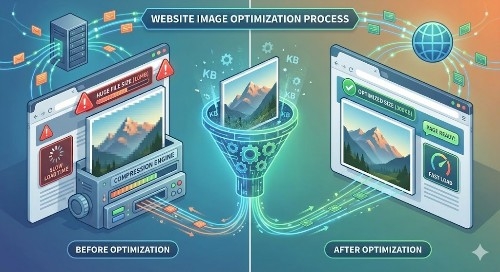
Why Image Optimization Matters Most of the time, we upload images straight from our phones or a camera. They look great, but they’re huge, sometimes 4MB, 8MB, or even larger. When a visitor loads your site, their browser has to download every image before they see the full page.
That delays everything.
Slow pages lower your Google ranking. Slow pages frustrate users. Slow pages make visitors bounce before they ever see your content or product.
Optimized images solve that. They keep your site fast, make search engines happy, and give visitors a smooth experience on any device.
Best Image Formats And When To Use Them Here’s a simple breakdown of the common formats:
JPEG
Use this for photos, portraits, and complex images. It offers great compression and small file sizes.
Impact on speed: Fast-loading, good quality.
PNG
Use this for graphics that need transparency or crisp lines (logos, icons, charts).
Impact on speed: Heavier than JPEG. Use when necessary.
WebP
This is the modern winner. It offers smaller file sizes and better quality than both JPEG and PNG.
Impact on speed: Excellent. Great for SEO and speed.
SVG
Use this for logos, icons, and simple illustrations. It scales perfectly on any screen.
Impact on speed: Very fast. Ideal for responsive design.
GIF
Use only for small animations or very simple graphics.
Impact on speed: Not great for large images.
Techniques for Compressing Images Without Losing Quality You can compress images in two ways:
Lossless compression
This reduces file size without changing image quality. Great for PNGs, logos, and graphics.
Lossy compression
This slightly reduces quality in exchange for much smaller file sizes. Perfect for photos.
A good rule:
If it’s a photo, use lossy.
If it’s a logo or graphic, use lossless.
How to Properly Size Images for Different Devices A common mistake is uploading a giant image—something like 4000px wide—when your site only needs 1200px.
Here’s a quick guide:
Hero images: 1200–1600px
Regular blog images: 800–1200px
Thumbnails: 300–500px
Mobile images: Scale down to the device size (typically under 700px)
Always size your images to the exact space they occupy. Bigger is useless and slows everything down.
The Role of Alt Text in SEO Alt text helps search engines understand what an image is about. It also helps screen reader users who rely on descriptions to understand visuals.
Good alt text describes the image simply, using natural language.
Example of weak alt text:
“photo123.png”
Example of strong alt text:
“Woman using a laptop to design a website homepage layout”
Tools and Plugins for Image Optimization Here are some easy-to-use tools:
TinyPNG
Free and simple for PNG and JPEG compression.
ShortPixel
A WordPress plugin that automatically compresses your images.
Imagify
Another great WordPress plugin with bulk optimization.
Squoosh
A Google tool for resizing and compressing images manually.
Cloudinary
A more advanced option for developers who want automated image delivery and resizing.
Best Practices for Naming Files Search engines read file names. A good file name helps you rank higher.
Bad:
IMG002199-final.png
Good:
website-image-optimization-guide.png
Separate words with hyphens. Describe the image simply.
How Lazy Loading Improves Page Speed Lazy loading delays image loading until the user actually scrolls to the image. Instead of loading everything at once, your site loads only what’s visible.
Benefits: Pages load faster
Less data usage
Better experience for mobile users
No wasted bandwidth
In HTML, it’s as simple as adding:
loading=”lazy”
Common Image Optimization Mistakes To Avoid Uploading images straight from a phone
Using PNG when JPEG or WebP is better
Not resizing images before uploading
Using file names like “IMG_0282.jpg”
Skipping alt text
Hosting huge images on slow servers
Examples of Tools Compared: TinyPNG: Simple, great compression, free tier
ShortPixel: Automatic WordPress optimization, aggressive compression
Imagify: Easy interface, supports WebP conversions
Cloudinary: Advanced automation, real-time resizing
Squoosh: Great manual control, browser-based
Lazy Loading Implementation If you’re using WordPress:
Most themes support lazy loading by default.
If you’re coding manually: Use the loading attribute
Use JavaScript-based libraries for older browsers
Use intersection observers for advanced control
Advanced Techniques Beyond Basic Compression:
Responsive images
Serve different versions of images depending on screen size.
CDN-based image delivery:
Use a CDN like Cloudflare or Cloudinary to deliver images closer to the user.
Next-gen formats:
Use WebP or AVIF for maximum speed.
Vector images:
Use SVGs for icons and logos to keep everything sharp and small.
Case Study: Sites That Improved Through Image Optimization E-commerce site example
A clothing brand reduced image size by 70% and saw a 28% increase in mobile conversions.
Blog example:
A US-based travel blog reduced page load time from 6 seconds to under 3 seconds, which increased their Google ranking and cut bounce rate in half.
Portfolio website example:
A designer switched images to WebP and enabled lazy loading. Their site went from “slow” to “excellent” on Google PageSpeed Insights.
Important Phrases Explained:
Image Compression
This means shrinking your images so they load faster without making them look blurry. It’s the easiest step and gives the biggest speed improvements.
Responsive Images
These are images that adapt to different screen sizes. Your laptop doesn’t need the same image size as your phone, and responsive images make sure each device gets what it needs.
Lazy Loading
This loads images only when a user scrolls to them. It saves time and bandwidth, especially on long pages with many pictures.
Next-Gen Formats
These are formats like WebP that give you high-quality images at much smaller sizes. They help sites load faster and rank better.
Alt Text
This is the short description you add to images for accessibility and SEO. It helps Google understand your image and helps people using screen readers.
Questions Also Asked by Other People Answered:
How much can image optimization improve my site speed?
In many cases, image optimization alone can reduce loading time by 30–70 percent. It’s often the fastest, cheapest improvement you can make.
Do I need to optimize images if I use a fast hosting service?
Yes. Even the best hosting can’t compensate for huge, heavy images. Hosting makes delivery faster, but optimization makes the files small enough to deliver efficiently.
Is WebP supported on all browsers?
Most modern browsers support WebP. Only a small percentage of older browsers don’t, and you can set fallback images for them.
Should I optimize images even if my site has only a few pictures?
Yes, because even two or three large photos can slow down your homepage, especially for mobile users.
How do I check if my images are slowing down my site?
Use tools like Google PageSpeed Insights, GTmetrix, or Pingdom. They show exactly which images are too large and what you need to fix.
Summary
Many people think speeding up a website requires deep technical skills, but image optimization is something anyone can learn. Once you understand formats, sizing, and compression, everything becomes easier. Tools can automate most of the heavy lifting. A few small adjustments can transform your website into something faster, smoother, and more search-engine-friendly. It’s one of the simplest ways to improve the experience for your visitors, and it’s something you can start doing right after reading this.
#ImageOptimization
#WebsiteSpeed
#WebDevelopmentTips
#SEOBasics
#WebPerformance
#DigitalTools
#WebsiteDesign
#LazyLoading
#USWebDesign
#WebTechGuide
image optimization,
website speed,
SEO,
web performance,
web development,
WordPress,
beginner guides,
web technology,
US websites,
responsive desig
Focus key phrase:
website image optimization
optimize-website-images/
beginner-guide-to-image-optimization/
faster-loading-images-guide/
website-speed-image-tip